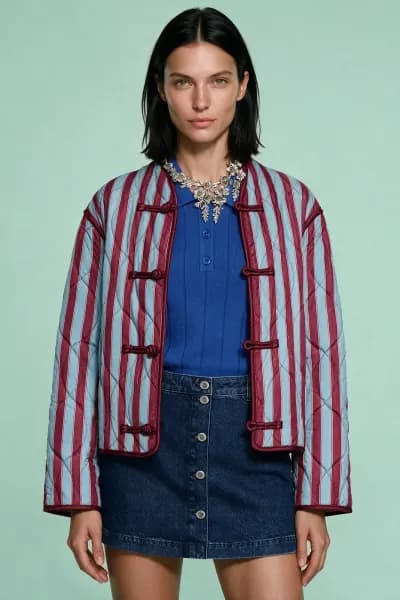
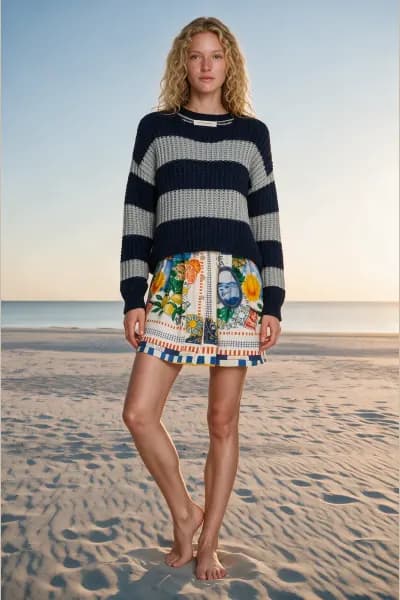
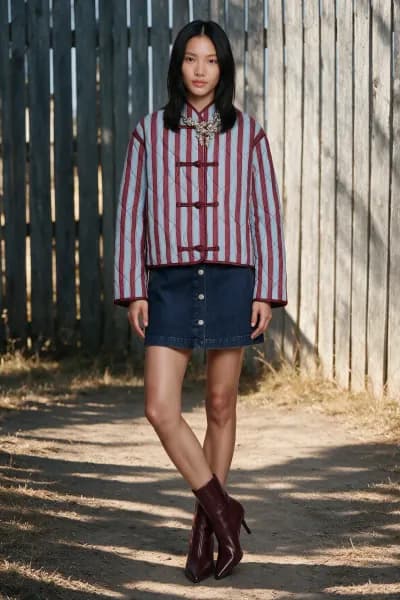
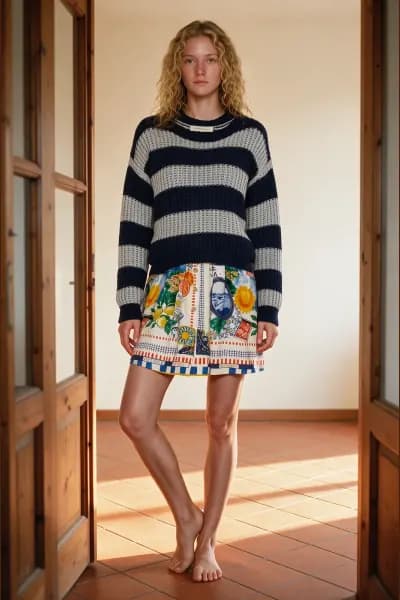
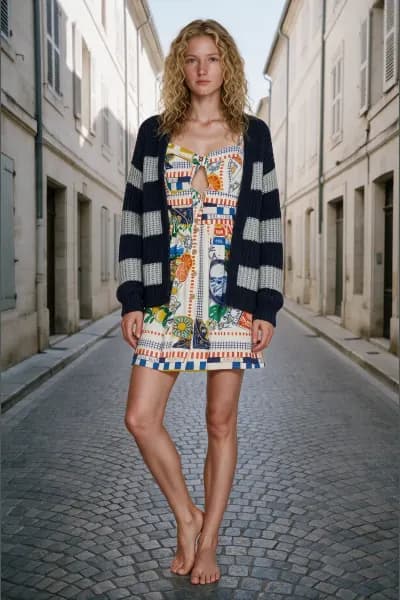
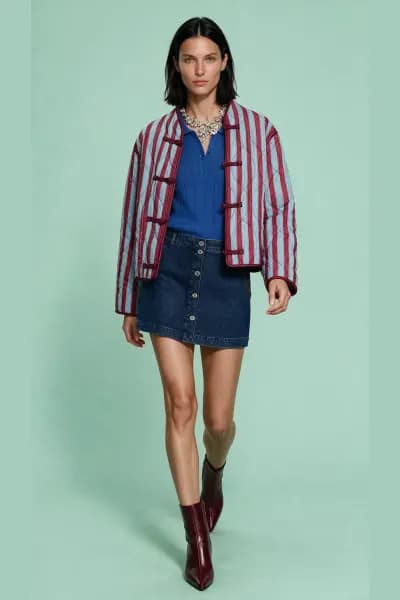
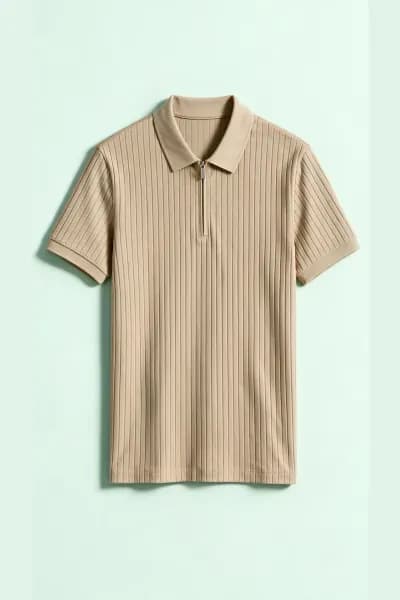
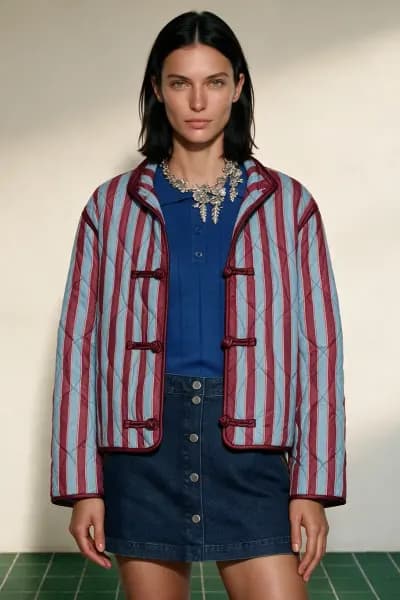
One pipeline, three tools
Every tool in FashionStudio runs the same sequence. What differs is what goes in, products laid flat, an outfit already worn, a dress form, a person to reshoot, and what the last step produces. The first three all go into the On model tool, which reads each photo for what it is. Knowing the sequence tells you where quality comes from and where a mistake can be corrected.
1. Upload
You add photos to a shoot: JPEG, PNG, WebP or AVIF under 50MB, at least 1000 pixels on the long side and 600 on the short side, 1280 or more on the short side recommended. A shoot holds up to 20 photos. On model shoots can also send a canvas composed from several product images, which becomes one ordinary source photo. Browsing the models, poses and scenes creates no shoot; nothing exists until you add content.
2. Analysis into a verified description
Each source photo is read by an analyser that finds every garment and accessory in it and writes a structured description: a category, a label, the colours and materials it can see, the details that make the item unique, the details a generator is most likely to get wrong, and the body zones the item covers. The analyser is told to refuse rather than invent: a photo it cannot read comes back as "Photo not usable" with a reason, and a detail it cannot see is flagged as a risk rather than described.
This step is free but needs at least 1 credit on the account, and every plan has a daily and a monthly allowance for it. Each product then appears as a card you can open. Its Label and Details are yours to edit and are written into every prompt that uses the product. This is the moment to fix a misread cuff: the description is what the photo is generated from, and a corrected word is carried into every later photo.
3. Casting
In the On model tool you cast a catalogue model and a size. Every size is a real generated body for that model, not a label, so the garment is judged against the figure it will be worn on. The models are generated and depict no real person. Pose Batch skips this step, because the person in your photo is the subject. Decoupe skips it because no one appears in a packshot.
4. Poses
Each pose is one photo. The On model tool offers up to 6 poses from the library, grouped by full body, upper body and lower body framing. Pose Batch takes up to 4 pose references, from your own uploads or the pose library, and uses only their pose and composition. Decoupe has no pose: each product is presented in the chosen style, Ghost mannequin, Laid flat or Hanging.
5. Scene and size
The scene is optional. You can pick a location from the library, the studio in any paper colour, or leave the soft mint studio default. You also pick the photo shape, 3:4, 4:3, 9:16, 16:9, 1:1, 4:5, 5:4 or Auto, once per shoot. Every size costs the same.
6. Generation, 1 credit per photo
When you press Generate, the app checks the whole shoot against the same rules the wizard showed you, takes 1 credit per photo from your balance, then queues one generation job per photo. Each job snapshots what it needs at that moment, the product descriptions, the model, the pose, the scene and the size, and compiles them into one prompt that addresses each reference image by role and lists the outfit inner to outer. A shoot in a library location is made in two passes: the model is photographed in a plain studio first, then placed into the location at true real world scale. It is still 1 credit per photo.
A photo that fails refunds its credit on its own, and the tile offers Retry, a new job at a new credit. If your balance runs out mid batch, the photos already started keep going.
7. Export with the label and metadata
Downloads come in JPG, PNG or WebP at Original, Storefront, Portrait post, Square, Story, Tall pin or Wide. Presets narrower than the photo crop the sides; wider ones are not offered, because the model is framed head to toe and a wider crop would cut the head and feet.
Every export carries machine readable provenance metadata marking the file as AI generated. That is not switchable, because disclosing it is our duty rather than yours to waive. The visible EU "AI GENERATED" label is on by default, burned into the top right of the image so it survives resharing, and can be turned off per download.
The library, for reuse
Any analysed product can be saved to your library with the bookmark on its card. The library holds a copy of the product's image and its verified description, up to the plan's cap. Importing it into a new shoot copies it again with no analysis, so the description is identical every time. Edits to a linked product's text write through to the library copy, and deleting on either side never breaks the other.
What stays editable and what is frozen
Editable at any time: product labels and details, the selection, the model and size, the poses, the scene, the size, the shoot's name.
Frozen: every generated photo. It keeps the descriptions, model, pose and scene it was made with, and the exact prompt is recorded with its job. Editing a product afterwards changes the next generation, never the last one. Deleting a shoot removes its source photos, crops and generated photos from storage; credits already spent are not returned, because the photos were produced.