What it makes
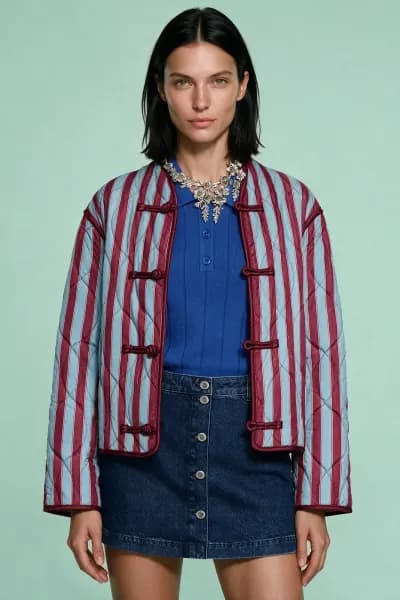
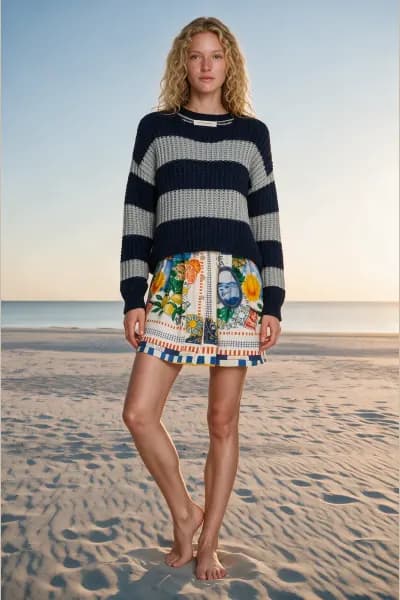
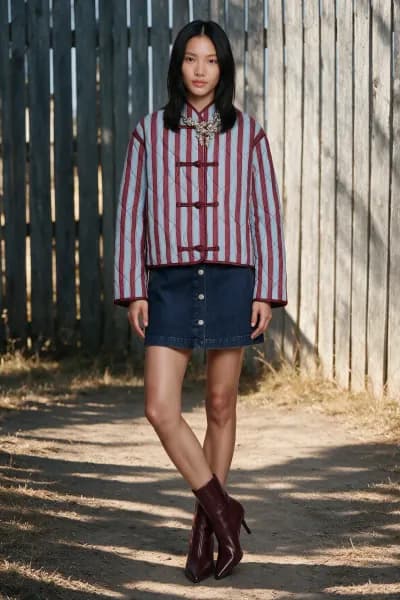
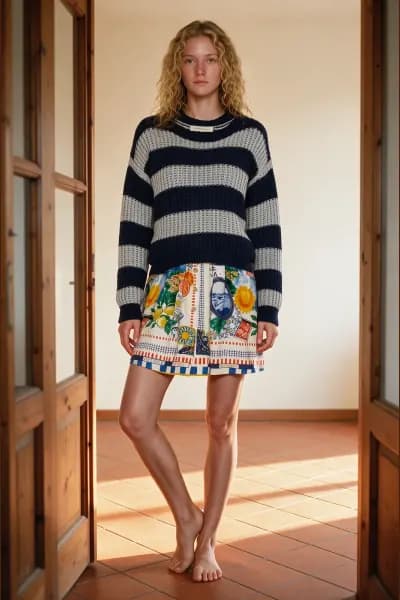
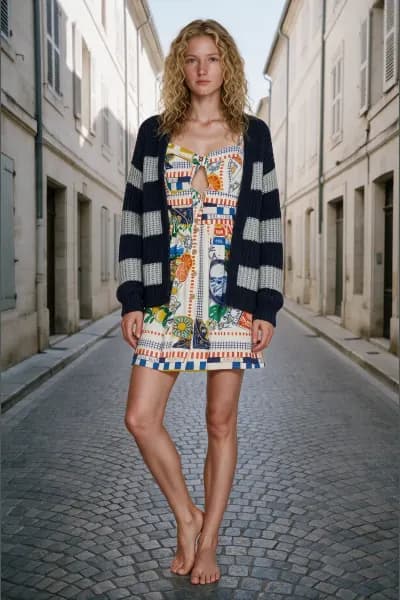
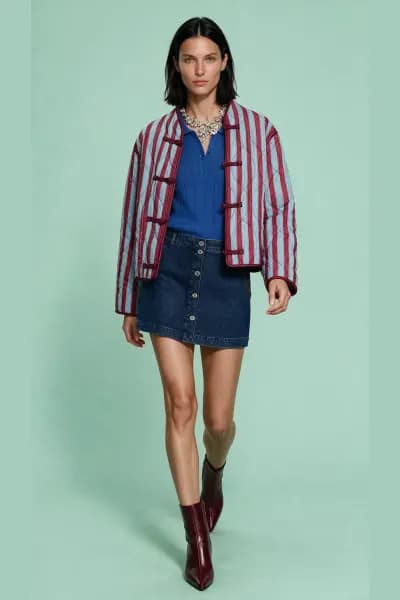
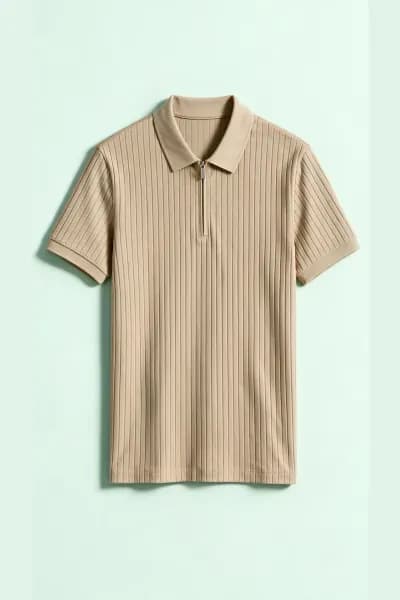
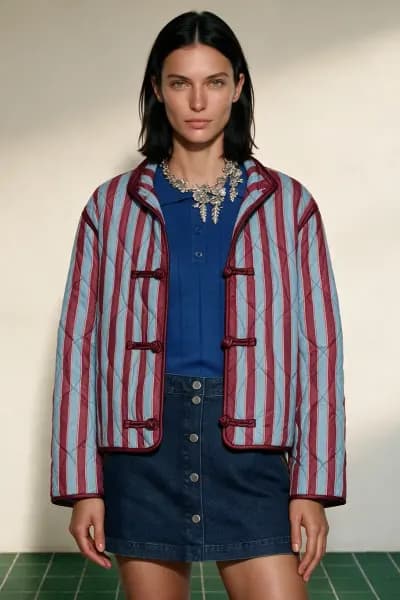
Decoupe takes a photo of a dressed look, worn by a person or on a mannequin, and produces one clean standalone product photo per product you select. No model appears in the output. It is the tool for product page images when the only photos you have show the garments being worn, and for turning one styled shot into a set of packshots.
Each selected product becomes its own photo. Select five products and you get five photos.
What to prepare
- Formats: JPEG, PNG, WebP or AVIF, under 50MB per file.
- At least 1000 pixels on the long side and 600 on the short side; 1280 or more on the short side is recommended. Below 1280 the upload is accepted with a warning that fine detail may soften.
- Up to 20 photos per shoot.
The analyser reads Decoupe shoots with a context that accepts either a person or a mannequin as the subject. The person or form is never a product; only the garments and accessories are listed. A product's packshot is generated from its crop in your photo plus its description, so the sharper and less obstructed the product is in the source, the more faithful the packshot. A garment half covered by a bag or an arm is described with that part flagged as a risk rather than invented.
Decoupe accepts flat lays and clean product shots too, but its purpose is the case where the garment is worn or on a form.
The stages
Decoupe has three stages: Products, Backdrop and Shooting.
Stage 01 · Products
Build the look, introduced with "Add photos of your products, worn by a model or on a mannequin. We read each one and pull the garments out." The ways in are Select photos and From your library. There is no canvas composer.
Analysis needs at least 1 credit on the account and consumes none. Every product found is shown as a card in Detected products and every one of them arrives selected, because here each product is its own photo rather than part of one look. There are no layer ceilings, no one at a time categories, no footwear question and no look checks on this tool.
The one limit is the batch: up to 12 products selected per shoot. The footer counts them, "N of 12 products selected. Each becomes one photo", and selected cards carry a number in pick order. A thirteenth click is refused with "That is 12 products, the most one shoot can take. Deselect one to swap it, or start a second shoot for the rest." Every product found is still shown, described and saveable to your library whether or not it is selected.
Open a product with the pencil, Edit Analysis Details, to correct its Label and Details; both are written into the packshot prompt.
Stage 02 · Backdrop
"Choose how each product is presented, then the studio paper colour. The style is required, the paper colour is optional."
The Shot style panel is the required choice: Ghost mannequin, Laid flat or Hanging. It sets how body garments hold their shape in their photo. Footwear, headwear, hosiery and accessories have no body shape to hollow out, so they always render as a standard packshot whatever the style, and the panel says so: "Shoes and accessories always get a standard packshot."
Above it, Photo size offers 3:4, 4:3, 9:16, 16:9, 1:1, 4:5 and 5:4, or Auto. On Decoupe, Auto is 3:4. Every size costs the same.
Product photos are shot in the studio: the Studio card in any paper colour through its palette icon (Use colour applies, Default restores the soft mint paper). Library locations are for the On model tool, where a person stands in the place.
Stage 03 · Shooting
Ready to shoot states "One photo per selected product, sized N. The size and style are set in the Backdrop stage." The button reads Generate N photos with the price in credits and opens Ready to generate?, whose recap says "One standalone photo per selected product, in the chosen style. Footwear and accessories are shot as standard packshots." and shows the selected products.
Photos fill in as they finish. Click any to open it full size. Generate again reshoots every selected product.
Configurations at a glance
- Shot style: Ghost mannequin, Laid flat or Hanging. Required. One per shoot.
- Photo size: seven shapes or Auto. One per shoot.
- Backdrop: studio paper colour. Optional.
- Per product: Label and Details.
- Batch: up to 12 selected products.
Credits
Every packshot costs 1 credit whatever its size or paper colour. Credits leave your balance when you confirm in the recap: one per selected product. A photo that fails refunds its credit automatically and its tile offers Retry, which starts a fresh attempt at a fresh credit. If credits run out part way through the batch, the photos that started continue and a notice reports how many. Analysis is free but needs at least 1 credit on the account.
Best practices
- Use the sharpest source you have. The product crop in your photo is the reference for its packshot.
- Photograph or crop so each product is as unobstructed as possible. Hidden parts are flagged, not guessed, and the packshot follows the description.
- Choose the style per shoot with the products in mind: a shirt reads well as Ghost mannequin or Hanging, knitwear and accessories often as Laid flat. Run a second shoot for products that want a different style.
- Keep batches at what you will actually use. Twelve is the ceiling, and each one is a credit.
- Save products to your library from here. The saved description is reused verbatim in any later tool.
Common refusals and what to do
- "Photo not usable": no garment or accessory could be found. Replace the photo.
- "Analysis failed": Retry, up to 3 attempts per photo, then upload the photo again.
- "Choose a shot style first": the style is required before generating.
- "That is 12 products, the most one shoot can take": deselect one, or start a second shoot for the rest.
- "This shoot has analysed as many photos as it can": continue in a new shoot.
- A daily or monthly analysis allowance used up: the message names the limit and, for the monthly one, the reset date. Allowances are listed on the pricing page.
- "No credits left": pick a plan on the billing page.
Downloads and the AI label
Hover a packshot for its download icon, or press Download all. Choose JPG, PNG or WebP and any of Original, Storefront, Portrait post, Square, Story, Tall pin and Wide; each card previews the exact crop, and several sizes or photos arrive as a zip with a folder per size.
Every export carries provenance metadata marking it as AI generated, which cannot be turned off. The visible EU "AI GENERATED" label is on by default and can be turned off per download with the switch Show the "AI GENERATED" label on the photo. Packshots show no person, so check your own publishing rules for whether you keep it.