What it makes
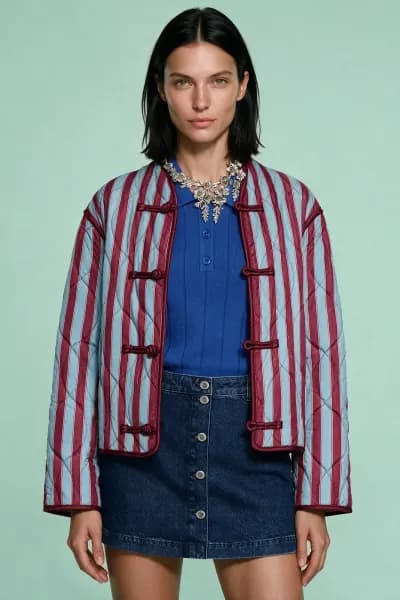
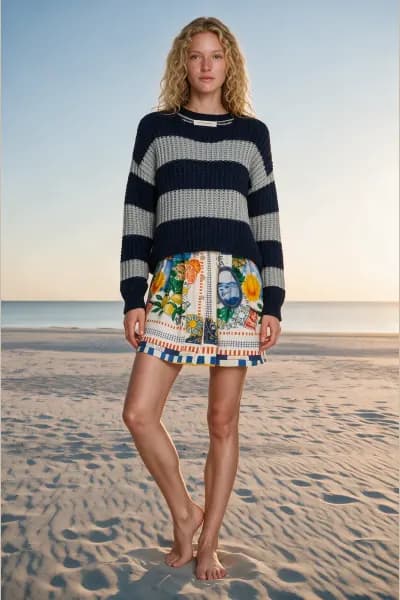
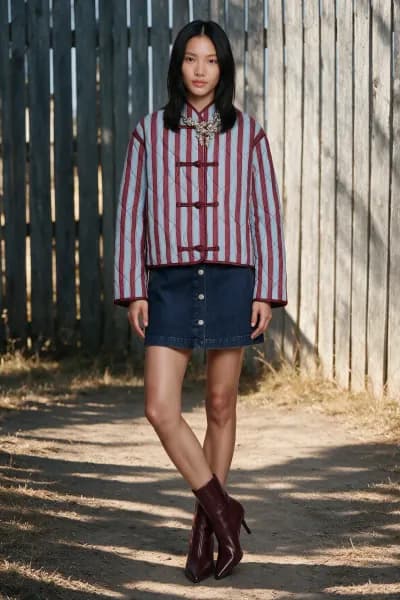
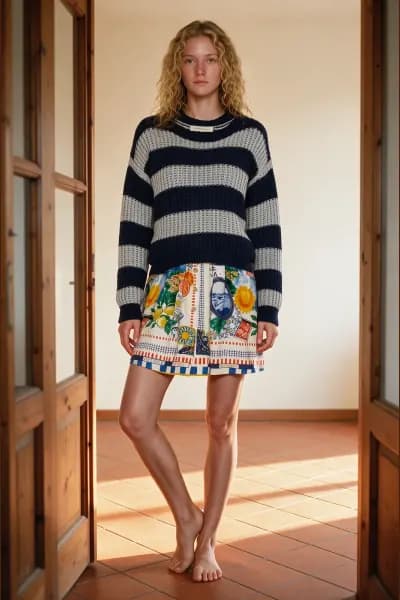
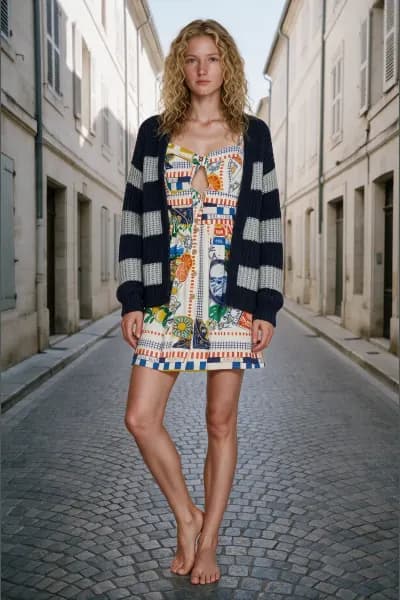
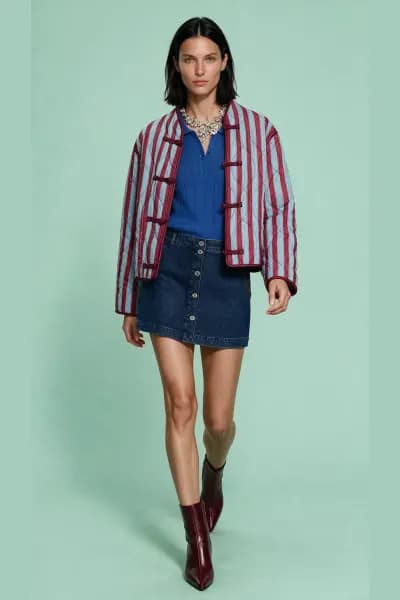
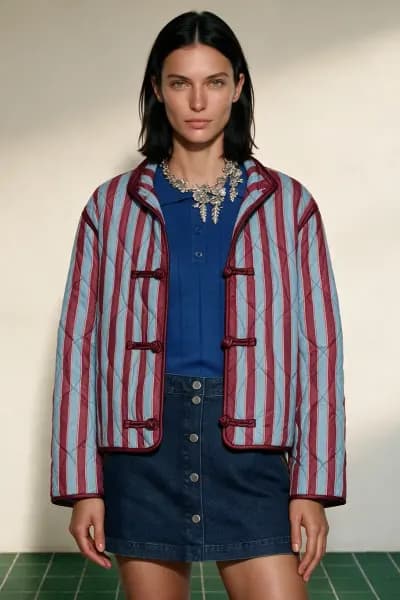
Pose Batch takes one photo of your model wearing your products in your setting and reshoots it once per pose reference: the same person, the same outfit, the same background, in a new pose. Add up to 4 references and get up to 4 photos.
This is the one tool where the uploaded person is the output. Every other tool casts a catalogue model; here your subject stays the model. That is why the subject stage requires you to confirm you hold the rights to the photo and the person's consent before anything is uploaded, and why generation is refused without it.
What to prepare
Two kinds of photo go in.
The subject photo, exactly one per project:
- JPEG, PNG, WebP or AVIF, under 50MB, at least 1000 pixels on the long side and 600 on the short side, ideally 1280 or more on the short side.
- One clear photo of a single person. The outfit is analysed so every new pose keeps it exact; the person and the background are carried over from this photo.
- Front on, well lit and unobstructed gives the most to work from. A second subject upload is refused with "This tool uses one subject photo. Remove the current one to replace it."
Pose references, 1 to 4 per project:
- The same file types, and only 512 pixels on the short side, since only the pose is read. References are stored, never analysed, and cost nothing.
- Only the pose, framing and composition are taken from each reference. The people, clothes and places in them are ignored. A held prop carries over.
- Clear, single person photos with clearly different poses give the most varied set.
The identity in the output comes from a single photo, so give the subject photo everything: face visible, whole outfit in frame, no motion blur.
The stages
Pose Batch has three stages: Subject, Poses and Shooting.
Stage 01 · Subject
The photo to reshoot. Before the drop zone opens you must tick the checkbox I have the rights to this photo and this person's consent to generate new photos of them. The upload stays disabled until it is ticked, and once the project exists the stage shows "Rights and consent for this person's photo are confirmed on this project." Then Select a photo or drop one file.
Analysis needs at least 1 credit on the account and consumes none. The stage shows the photo while it is analysed, then The outfit we detected: each garment as a category pill and label with an Edit button. The outfit is not a selection, every piece stays exactly as worn in every new pose. Edit a description only if something was misread; the label and details are written into the prompt as keep clauses for that garment.
Remove photo deletes the subject so you can replace it. A failed analysis offers Retry analysis.
Stage 02 · Poses
Pose references: "Up to 4 photos whose pose and composition your subject will take. The people, clothes and places in them are ignored; a held prop carries over."
Two tiles add references: Add pose uploads your own photos, and From our poses opens the pose library with Female poses and Male poses tabs, grouped into full body, upper body and lower body. Pick as many as you have free slots: each card shows its number in the shoot, counting the references you already have, and Add poses copies them into the shoot at that moment, so later changes to the library never touch your shoot. Only the pose and framing are used, never the figure on the card. The counter reads "References · N of 4", and a fifth is refused with "A shoot takes up to 4 pose references. Remove one to add another."
Below the references are the shoot's two settings:
- Fine-tune note · optional: a text box of up to 240 characters with a Save note button. The line under it says whether the note is saved and will be used in your next shoot, or not saved yet. It applies to every frame in the batch and steers light, mood or expression. The placeholder gives the register: "For example: natural light, a slight smile, professional editorial tone."
- Photo size: 3:4, 4:3, 9:16, 16:9, 1:1, 4:5, 5:4 or Auto. Auto keeps the subject photo's own shape, and its chip shows which. With an explicit size the scene from your photo is extended to fill the frame.
Both are held while photos are generating, and can be changed again once they finish.
The footer states the maths: "N of 4 pose references. Each becomes one photo."
Stage 03 · Shooting
Ready to reshoot, then your photos. Generate N photos shows the price in credits and opens Ready to generate?: "One photo per pose reference: the same person, outfit and setting as your subject photo, in each reference's pose." with the subject and references shown. When a note is set, the recap adds "Your fine-tune note applies to every frame."
Photos fill in as they finish. Click any to open it full size. Generate again reshoots every reference.
Configurations at a glance
- Consent confirmation: required, recorded on the shoot.
- One subject photo, 1 to 4 pose references from uploads or the pose library.
- Garment descriptions: editable per detected piece.
- Fine-tune note: up to 240 characters, one per shoot.
- Photo size: seven shapes or Auto.
Credits
Every photo costs 1 credit whatever its size. Credits are taken when you confirm in the recap: one per reference. Pose references themselves are free, whether uploaded or picked from the library. A photo that fails refunds its credit automatically, and its tile offers Retry at a fresh credit. Analysis of the subject is free but needs at least 1 credit on the account.
Best practices
- Choose the subject photo for the person, not the pose: face clear, outfit complete, even light. The pose is what changes.
- Pick references whose framing matches what you want to publish. A full length reference makes a full length photo.
- Use references with clearly different poses. Four near identical references make four near identical photos.
- Keep the fine tune note to light, mood and expression. It applies to every frame, so it should describe the batch, not one shot.
- Check the detected outfit before generating. A misread garment is reproduced as misread in every pose.
- You must hold the rights and the person's documented consent. The checkbox is a confirmation of that fact, not a substitute for it.
Common refusals and what to do
- The upload stays disabled: tick the rights and consent checkbox first. The tooltip says "Please confirm you have the rights to this photo first".
- "Photo not usable": the analyser could not read the outfit. Remove the photo and add a clearer one.
- "Analysis failed": Retry analysis, up to 3 attempts, then upload the photo again.
- "This tool uses one subject photo. Remove the current one to replace it.": delete the subject before adding another.
- "A shoot takes up to 4 pose references. Remove one to add another.": the reference ceiling.
- "No credits left": analysis and generation need a credit. Pick a plan on the billing page.
- A daily or monthly analysis allowance used up: the message names the limit and the reset date. Allowances per plan are on the pricing page.
Downloads and the AI label
Hover a photo for its download icon or press Download all. Formats are JPG, PNG and WebP; sizes are Original, Storefront, Portrait post, Square, Story, Tall pin and Wide, each previewed as the exact crop. Sizes wider than the photo are not offered, because a wider crop would cut the head and feet; shoot at that size instead. Several sizes arrive as a zip with a folder per size.
Every export carries provenance metadata marking it as AI generated, which cannot be switched off. The visible EU "AI GENERATED" label is on by default and can be turned off per download with Show the "AI GENERATED" label on the photo. These photos show a real person, so the visible label is usually required when you publish them.